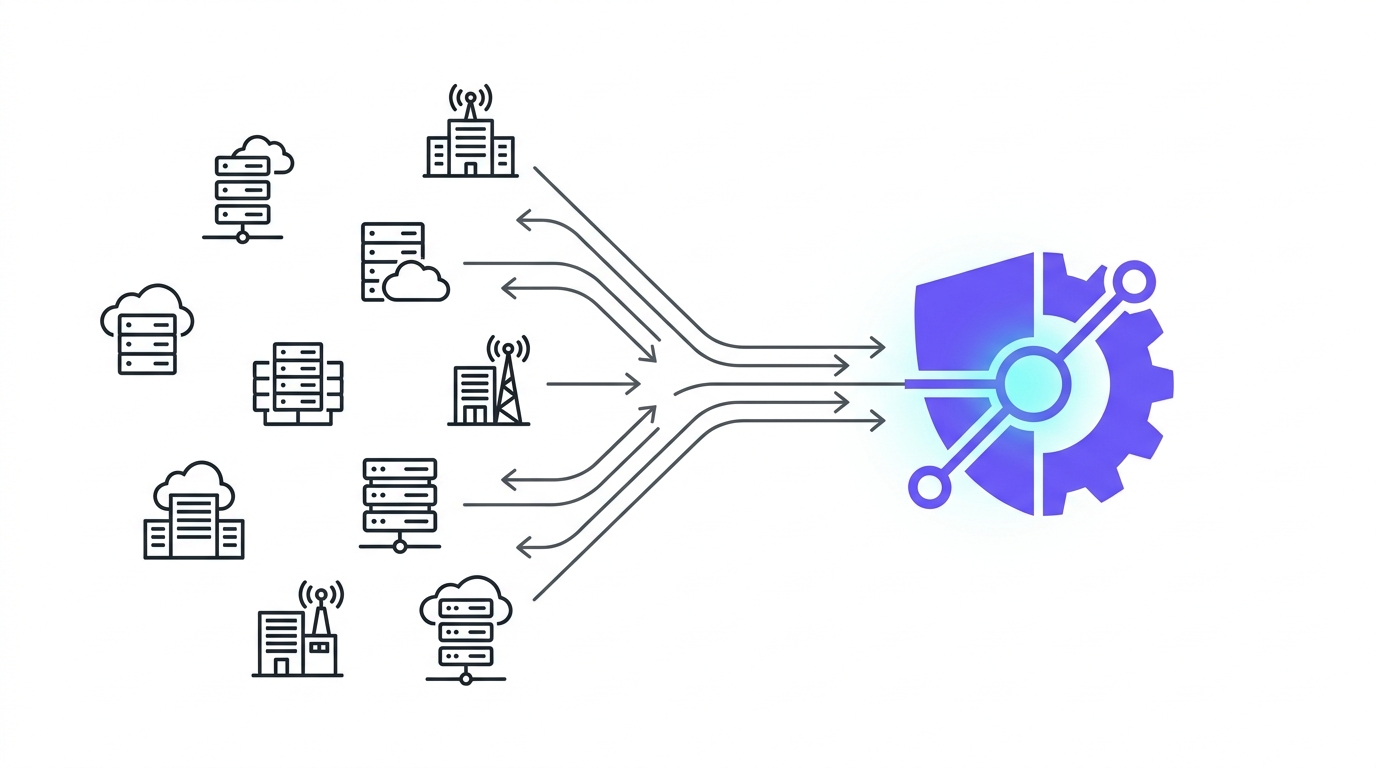
If you’ve been running Nutanix disaster recovery for a while, there’s a good chance your environment still leans on protection domains. They’ve done the job for years: pick a set of VMs, attach a schedule, point it at a remote site. But Nutanix has moved the center of gravity for DR to Prism Central, where protection is entity-centric instead of domain-centric, and the legacy model is starting to show its age next to what the newer constructs can do. The good news is that Nutanix ships an actual migration tool for this, not just a manual rebuild, and it’s worth understanding how it works before you’re forced to use it under deadline pressure.
Why bother migrating at all
Protection domains protect a fixed group of entities on a schedule. Entity-centric Nutanix Disaster Recovery, built around protection policies and recovery plans in Prism Central, adds things protection domains never had: VM boot ordering during failover, custom script execution as part of a recovery stage, network mapping that understands VPCs and floating IPs, and role-based access control over who can touch what. None of that is available if you’re still sitting on protection domains. The migration tool exists specifically to move you off them without rebuilding every schedule and mapping by hand.
What the tool actually does
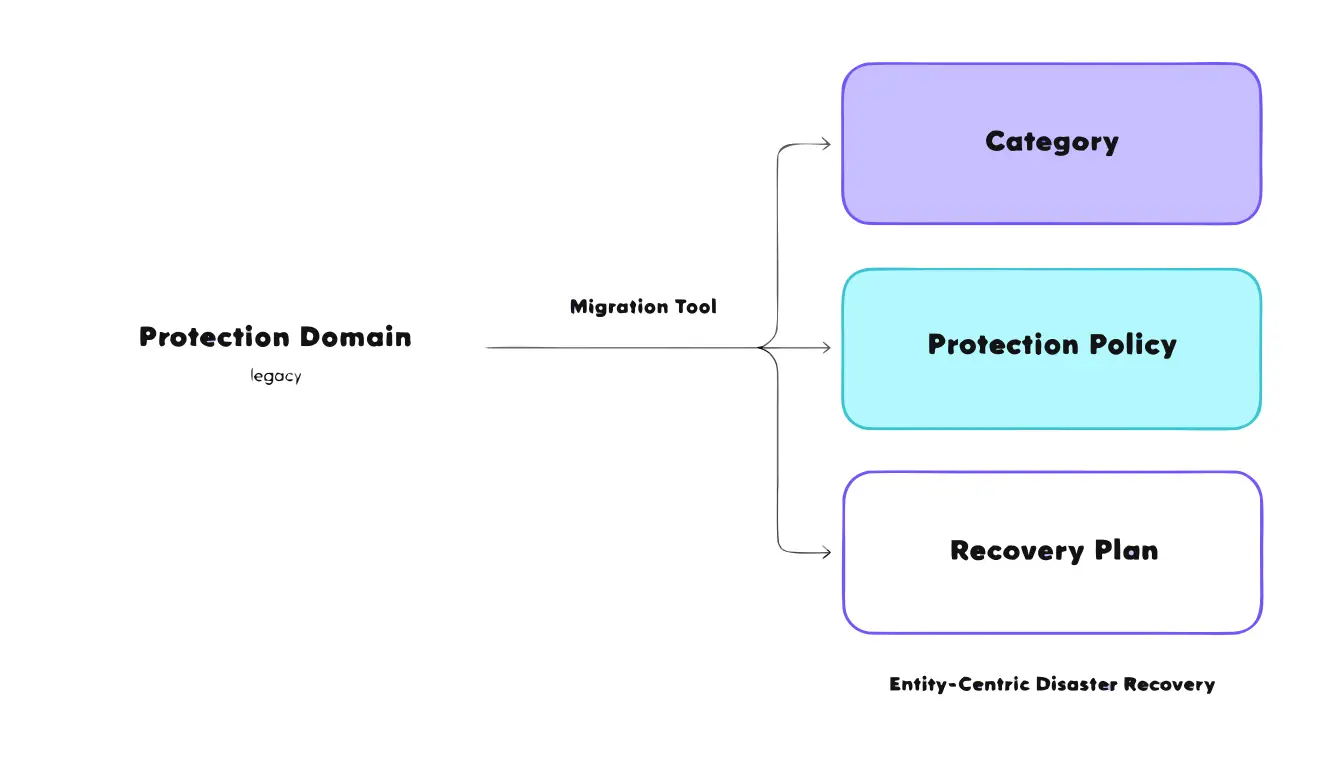
Run the migration and the system walks each protection domain through a mapping, not a straight copy:
- Category: a new category is created per protection domain (for example
Cat_{PD_NAME}:default), and any multi-entity consistency group inside the domain gets its own category too. - Consistency group: multi-entity consistency groups are recreated in Prism Central as
CG_<PD_NAME>_<CG_NAME>. Single-entity groups are just protected individually through the domain-level category. - Protection policy: a new policy (
PP_{PD_NAME}) is generated that duplicates the original replication schedule and retention settings. - Recovery plan: a corresponding plan (
RP<INDEX>_<PD_NAME>) preserves the network mappings and entity associations. If the domain protected workloads across two remote sites, you get two recovery plans, one per site.
The process handles up to 200 protection domains per run, processes them in parallel, and keeps a write-ahead log so a mid-migration failure rolls back to the original configuration instead of leaving things half-converted. After a successful run, the original protection domains are emptied but not deleted.
Check eligibility before you touch anything
The tool will reject or skip a protection domain that has any of the following: more than one replication schedule (or an inactive one), more than two remote sites, no VMs or volume groups, vStore protection, an RPO over 14 days on either side, Files support or file-level restore, bandwidth throttling, ESX Metro or SRM configurations, a failover already in progress, or a PC/PE instance mid-upgrade. Mixed crash-consistent and application-consistent entities inside the same domain also need a decision: force the whole policy to application-consistent, force it to crash-consistent, or skip that domain.
Version minimums differ by path. The Prism Central console workflow needs the source Prism Element on AOS 7.6 or later and all Prism Central instances on pc.7.6 or later. The CLI tool is more forgiving: AOS 7.3 or later on the source, pc.7.5 or later on the source Prism Central, and pc.7.3 or later on any remote Prism Central instances.
Migrating through the Prism Central console
- Log in to the Prism Central web console, open the Application Switcher, and select Infrastructure.
- Navigate to Data Protection, then Protection Policies.
- Click Migrate Protection Domains.
- Select the cluster that holds the protection domains you plan to migrate.
- Select the specific protection domains. Ongoing replication pauses for anything you select, and existing snapshots on the cluster don’t come along for the ride.
- Click Run Prechecks and let it validate the selected domains.
- Click Next, then review the categories the system proposes to create.
- Review the protection policies it will generate, then continue.
- Review the recovery plans it will create. You can opt out of auto-creating them here and build them by hand later if you’d rather control that step yourself.
- Review the full preview, then click Start Migration.
When it finishes, each migrated protection domain becomes a new protection policy, suffixed PP in the console, with its category and recovery plan already in place.
Migrating through the CLI tool
The CLI path is the one to reach for on older Prism Central versions, or when you’re converting a large batch and want to script around it.
- SSH into the Prism Central VM.
- Pull
pd_to_ec_conversion_tool_v1.pyfrom KB-20989 and save it to/home/nutanix/bin. - Run it:
~/bin/bin/python3.9 pd_to_ec_conversion_tool_v1.py. Add--protection_policy_limit <n>if you need to raise the default cap of 500 policies (up to 1000). - Pick the Prism Element instance that holds the domains you want to convert.
- Choose an action from the menu: validate all, validate a selection, convert all, or convert a selection. Running a validation pass first is worth the extra step before committing to a real conversion.
- Work through the interactive prompts: how to handle mixed consistency, how to handle unsupported day-of-week schedules, how to handle name collisions over 64 characters, and how to confirm DR enablement manually on any remote Prism Central still below pc.7.5.
- Confirm the conversion when prompted.
Output logs land in a timestamped directory under /home/nutanix/data/logs/convert_protection_domain_reports_<timestamp>/, including a summary, a full session log, and a JSON report. Archive them promptly; routine log cleanup will eventually remove them.
What doesn’t carry over automatically
A few things need manual attention after migration. Existing snapshots stay on Prism Element only, useful for building new entities but not for an in-place restore of anything you just migrated. Static IP address mappings aren’t migrated at all and need to be configured by hand in the new recovery plan. VMs or volume groups using direct attachment keep working after migration, but recovery plans don’t support direct attachment during an actual failover, so this is a good moment to move to CHAP authentication instead.
Before you run it for real
Do the migration in a maintenance window: replication pauses briefly while a domain converts. Don’t touch schedules or entity membership on a protection domain while its migration is in flight. If a domain is carrying more than 500 VMs and volume groups, split it before migrating rather than during. Keep protection domain names under 50 characters so the auto-generated recovery plan names stay under their own 64-character limit. And once the migration is done, don’t treat it as finished: manually test the new recovery plans, fill in any static IP mappings, and watch incremental replication in Prism Central until you’re confident it’s behaving the way the old protection domain did.
The tool does the mechanical work of translating protection domains into the constructs Prism Central actually understands. What it can’t do is verify that your new recovery plan fails over the way you expect. That part is still on you, and it’s worth doing before you’re testing it live during an actual outage.
Further reading
- Migrating Entities from Protection Domain-based DR to Nutanix DR Using the Prism Central Web Console (Nutanix Portal, Disaster Recovery / DRaaS Guide, vpc 7.6)
- Migrating Entities from Protection Domain-based DR to Nutanix DR Using the CLI-Based Tool (Nutanix Portal, Disaster Recovery / DRaaS Guide, vpc 7.5; conversion script itself is distributed via KB-20989 on the Nutanix Support Portal)
- Nutanix Bible: Book of DR Services (Policy Driven DR/Run Books), for background on the entity-centric DR model these migrations move you onto